
Activate the Chek Managed AI MCP Connector
Learn how to use your favorite AI client (Claude, ChatGPT, or Cowork) to connect to your WordPress websites.

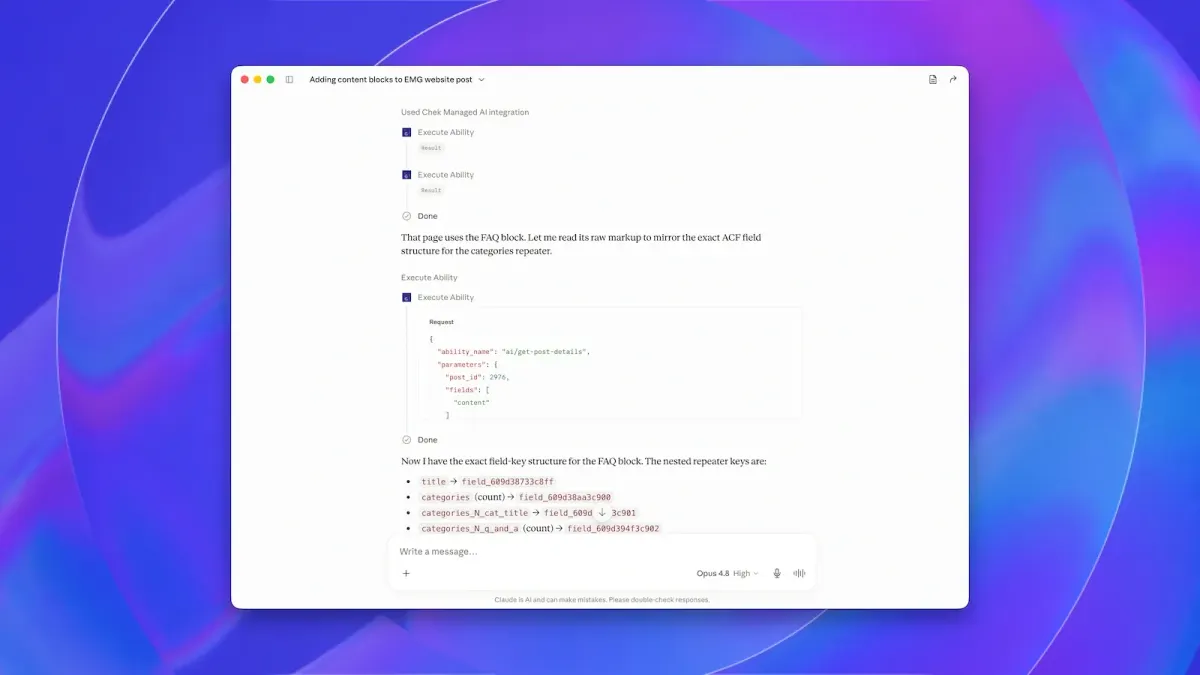
Introduction
The Chek Managed AI MCP Connector is available to select individuals for testing.
This page contains instructions for connecting the set of tools to your AI Client.
What you'll need
You will need to meet four prerequisites to use to the Chek Managed AI MCP Connector:
- Your website must be a WordPress site updated to 7.0.
- Your website must have the AI plugin published by WordPress.org
- Your website must have the Chek Managed AI plugin, made available only to select websites.
- You must receive an email invitation from
email.auth.chekcreative.com.
1️⃣ Create your account
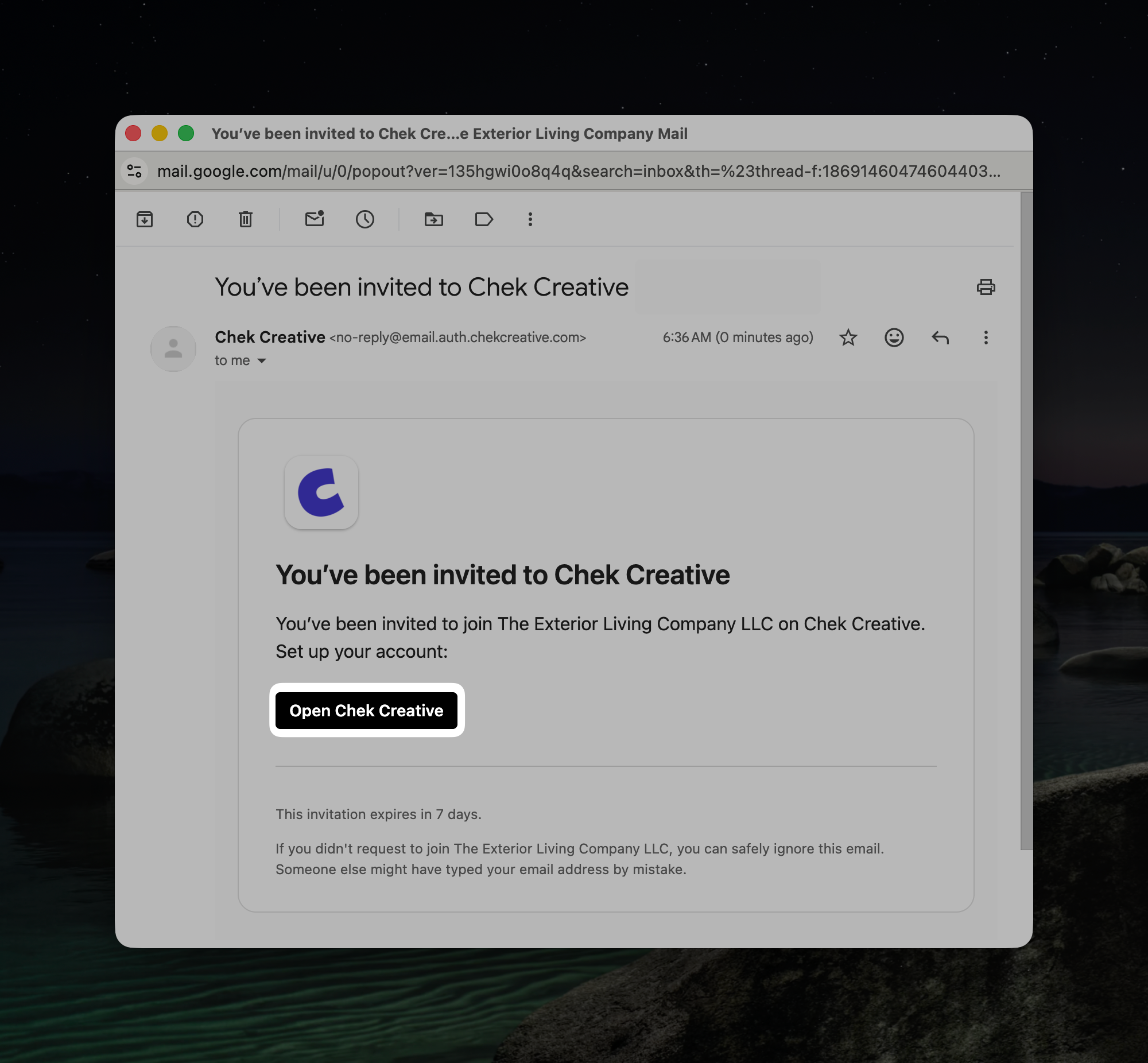
From your email invitation, click "Open Chek Creative."
Now within the authentication flow, enter your email, then click continue to add additional details.
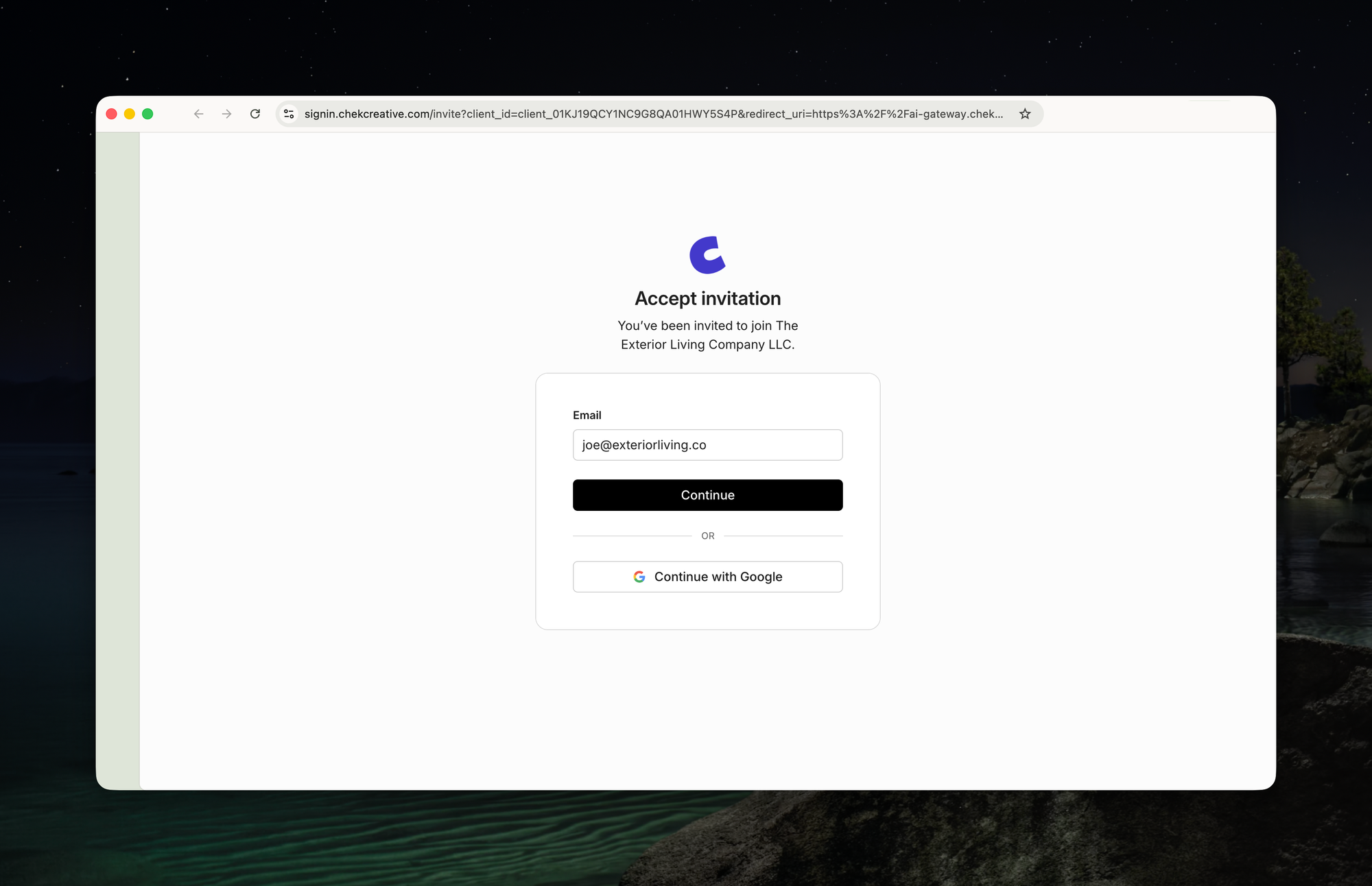
Optionally, click Continue with Google.
2️⃣ Configure your AI Client
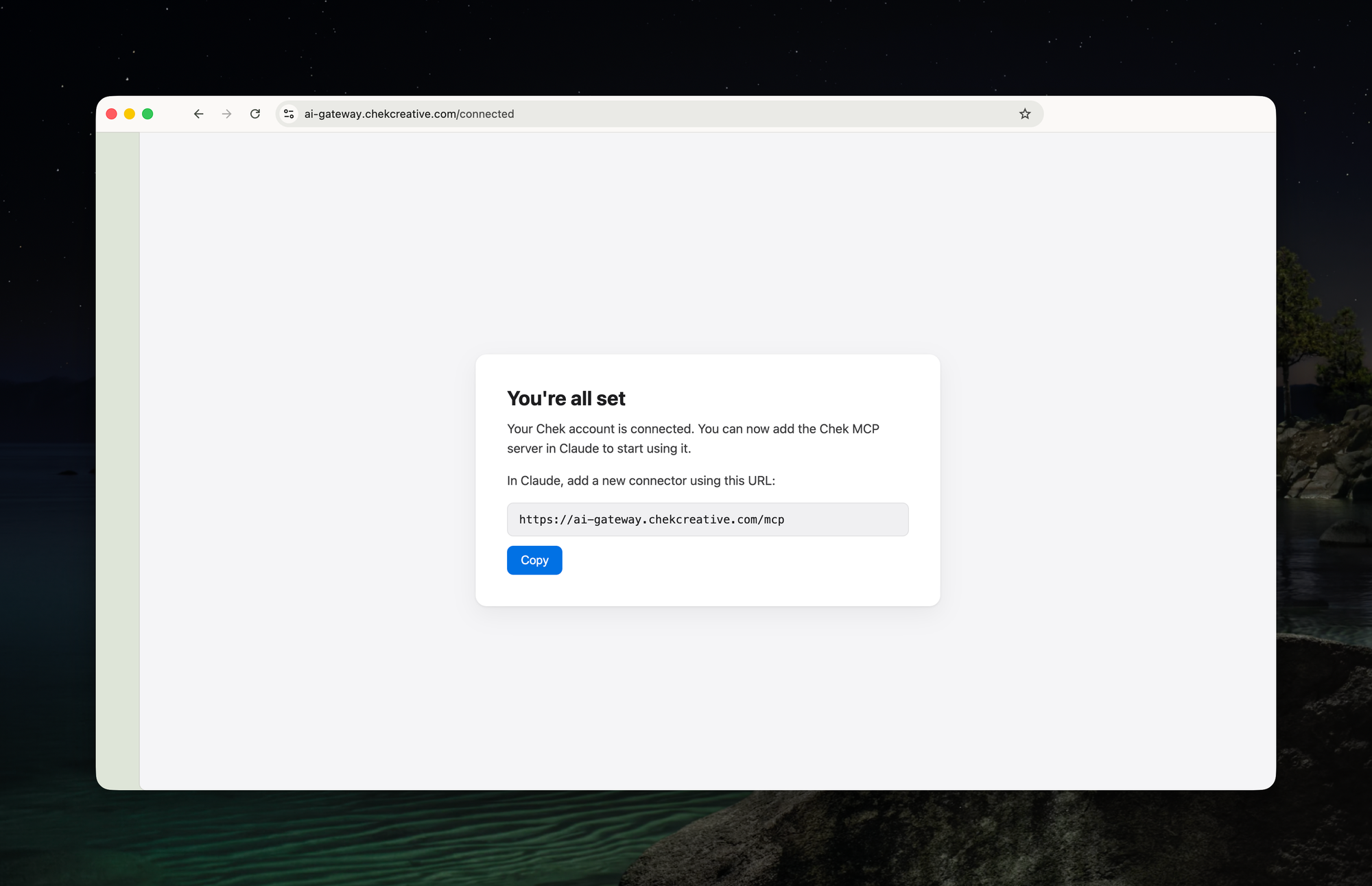
Once authentication is completed, copy the MCP URL from the confirmation page.
Using Claude
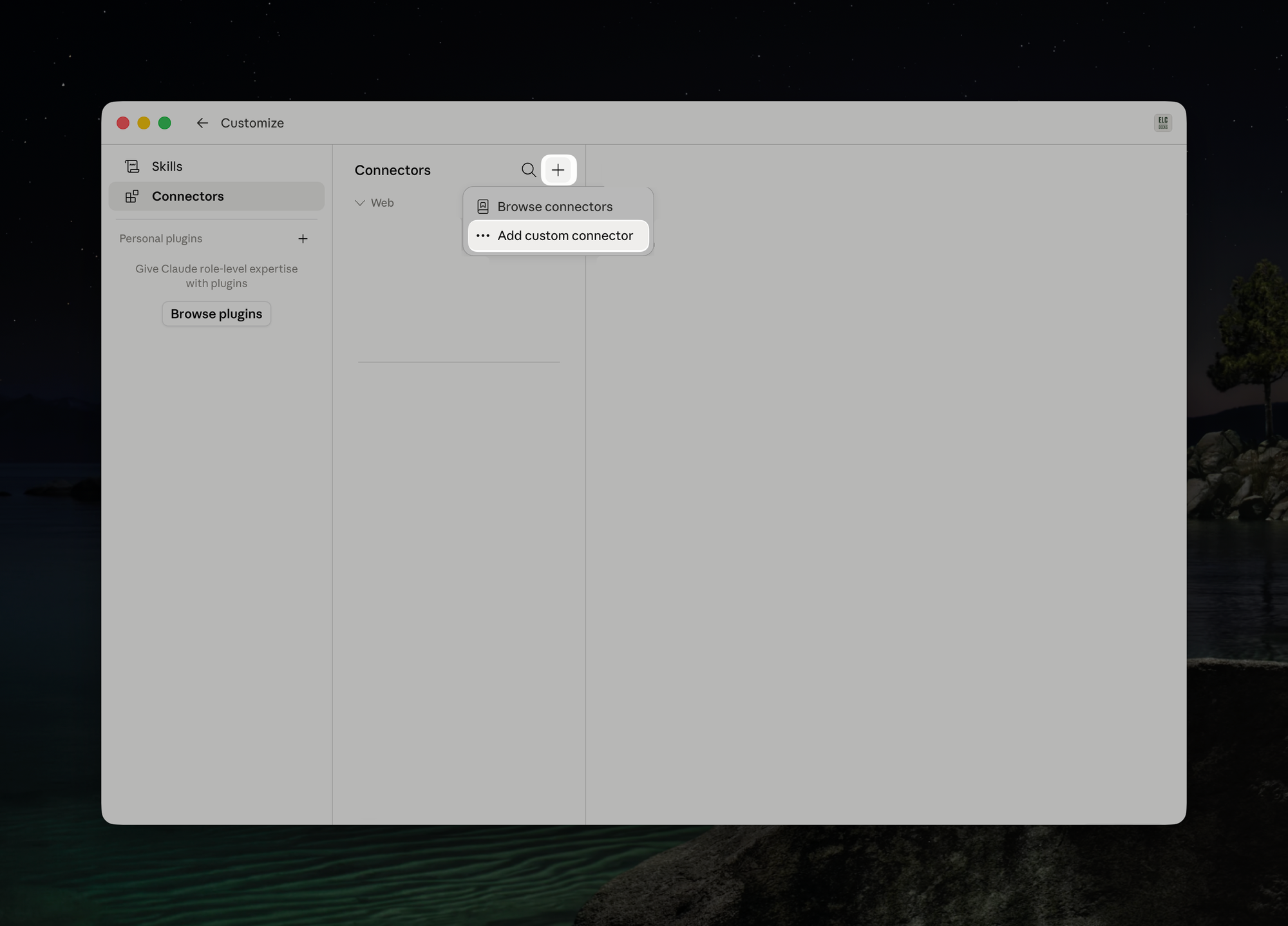
From the Claude sidebar, click Customize, then Connectors.
Then, from the Connectors page, click the (+) button, then Add Custom Connector.
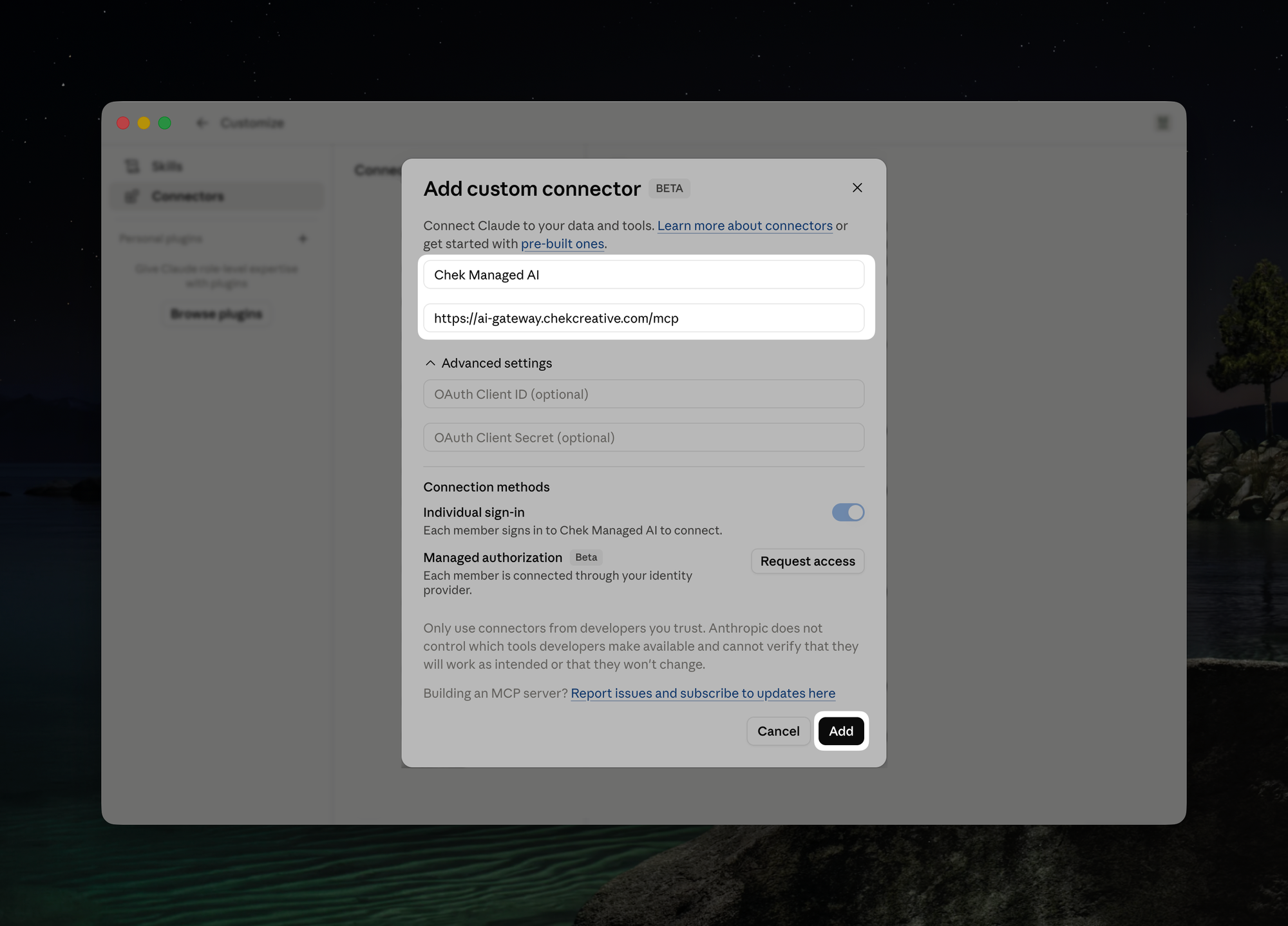
For Name, enter the you'd like to use (we recommend Chek Managed AI).
For Remote MCP server URL, paste the url that you copied before.
For ChatGPT
On the Developer mode and MCP apps in ChatGPT page, follow the instructions under Configuring an app.
For Copilot
On the Connect your agent to an existing Model Context Protocol (MCP) server page, follow the instructions under Configure basic server details.
For Authentication, choose OAuth 2.0.
For authentication type, choose Dynamic discovery.
Finalize a connection by following the instructions under Create a new connection and add the MCP server to your agent.
3️⃣ Test the connector
From a new chat, invoke the tool to discover all of the abilities registered with your site.
Questions? Reach out to hello@chekcreative.com.
Troubleshooting
A site is missing, or its tools don't show up.
Your client may be showing a cached list. Reconnect the connector and start a new chat.
Tools return nothing, or you get an authorization error.
Your sign-in email doesn't match a WordPress user on that site. Make sure the same email address is a WordPress user (Administrator recommended) there, then try again.
No tools at all from any site.
Re-check the MCP URL you pasted, and that you completed the email sign-in.
Still stuck? Email hello@chekcreative.com.